
IoT Camera HUB
Quick guide to set up the SSL certificate and connect cameras from the browser.
Set up primary certificate (SSL)
First time
- Install the app on the primary phone.
- Open the app and note the IP/port it shows (default 5173).
- Download the CA from the primary phone (not installed yet, so use
-k).
PRINCIPAL_IP=192.168.121.59
curl -4sk -u user:PhotoSh0t "https://$PRINCIPAL_IP:5173/cert/export/ca.pem" --output iot-camera-hub-principal.pem- Install the CA on your system (for example on Linux).
sudo install -Dm644 iot-camera-hub-principal.pem /etc/ca-certificates/trust-source/anchors/iot-camera-hub-principal.pem
sudo update-ca-trust- Once installed, the primary terminal server is already secure on your computer.
- Download the "primary" certificate configuration and store it safely; this way you won't need to update your PC again and can use the same certificate for all devices.
curl -4s -u user:PhotoSh0t "https://$PRINCIPAL_IP:5173/cert/export/ca.json" --output iot-camera-hub-cert-config.json- Open the browser and go to; if it loads correctly and the certificate is secure, you are ready to add more terminals:
https://192.168.121.59:5173/web/New installations
If you reinstall or reset data or add new terminals to the HUB, to load the same certificate, upload the configuration you downloaded from the "primary" terminal the first time.
SECUNDARIO_IP=192.168.121.60
curl -4sk -X POST -u user:PhotoSh0t --data-binary @iot-camera-hub-cert-config.json "https://$SECUNDARIO_IP:5173/cert/import"
Configure camera
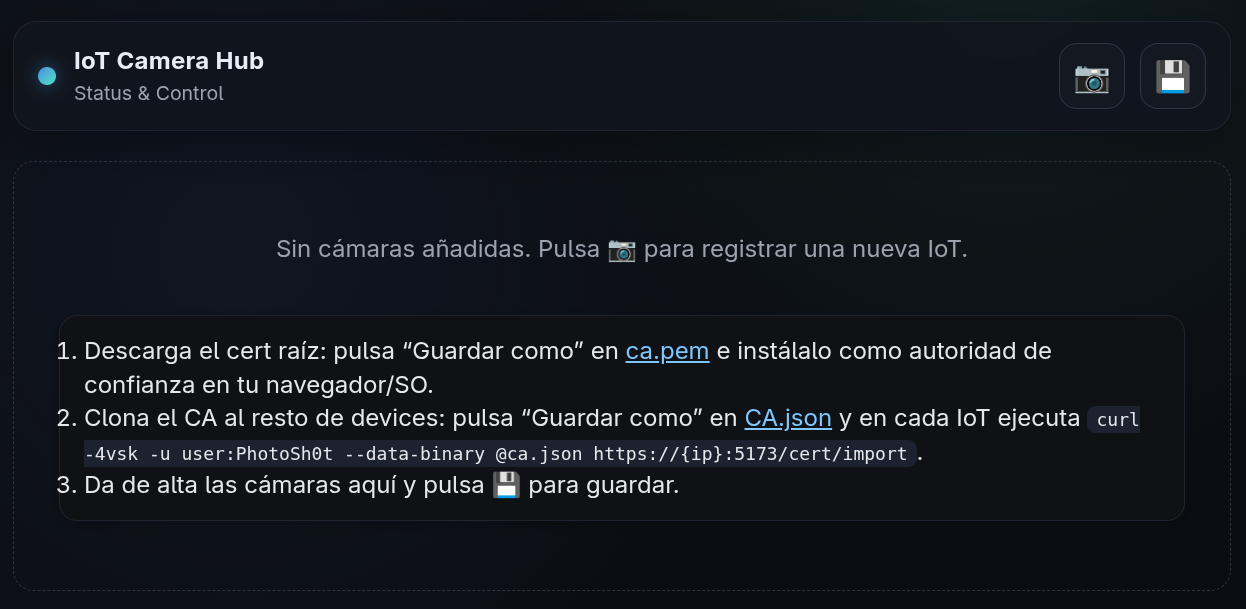
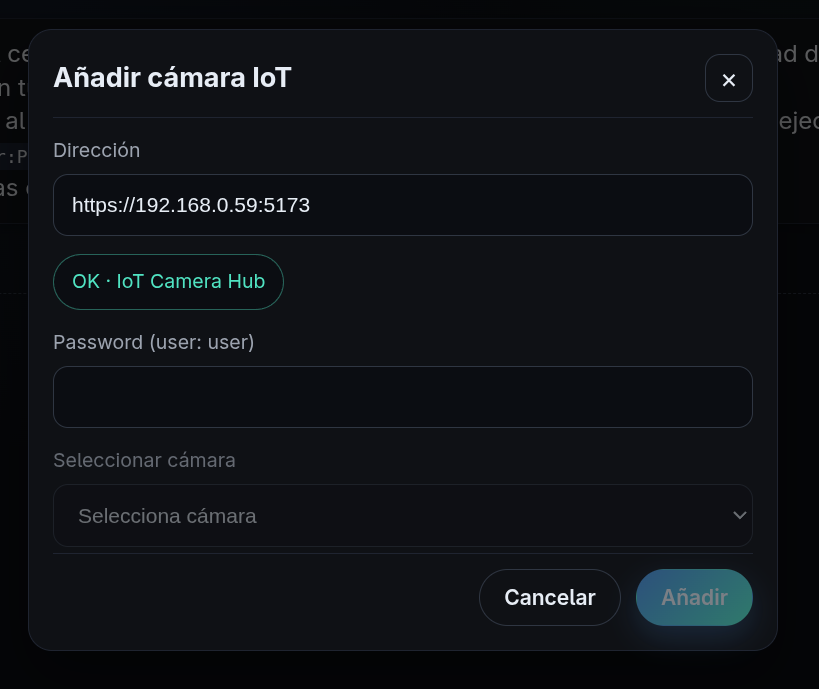
PhotoSh0t).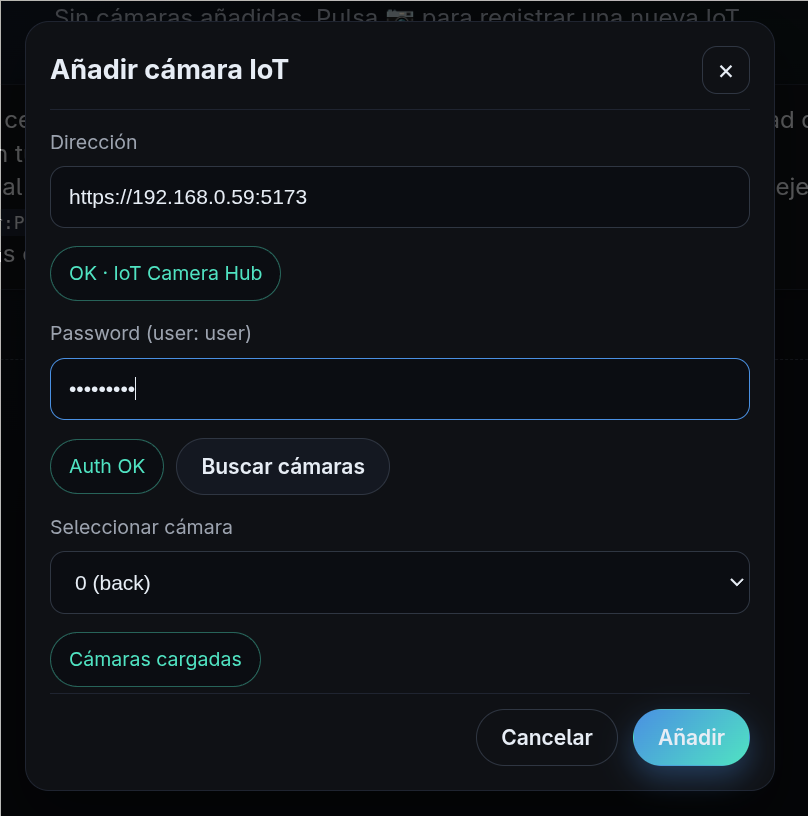
Auth OK you can choose which camera to take images from
(a terminal can use only one camera at a time).
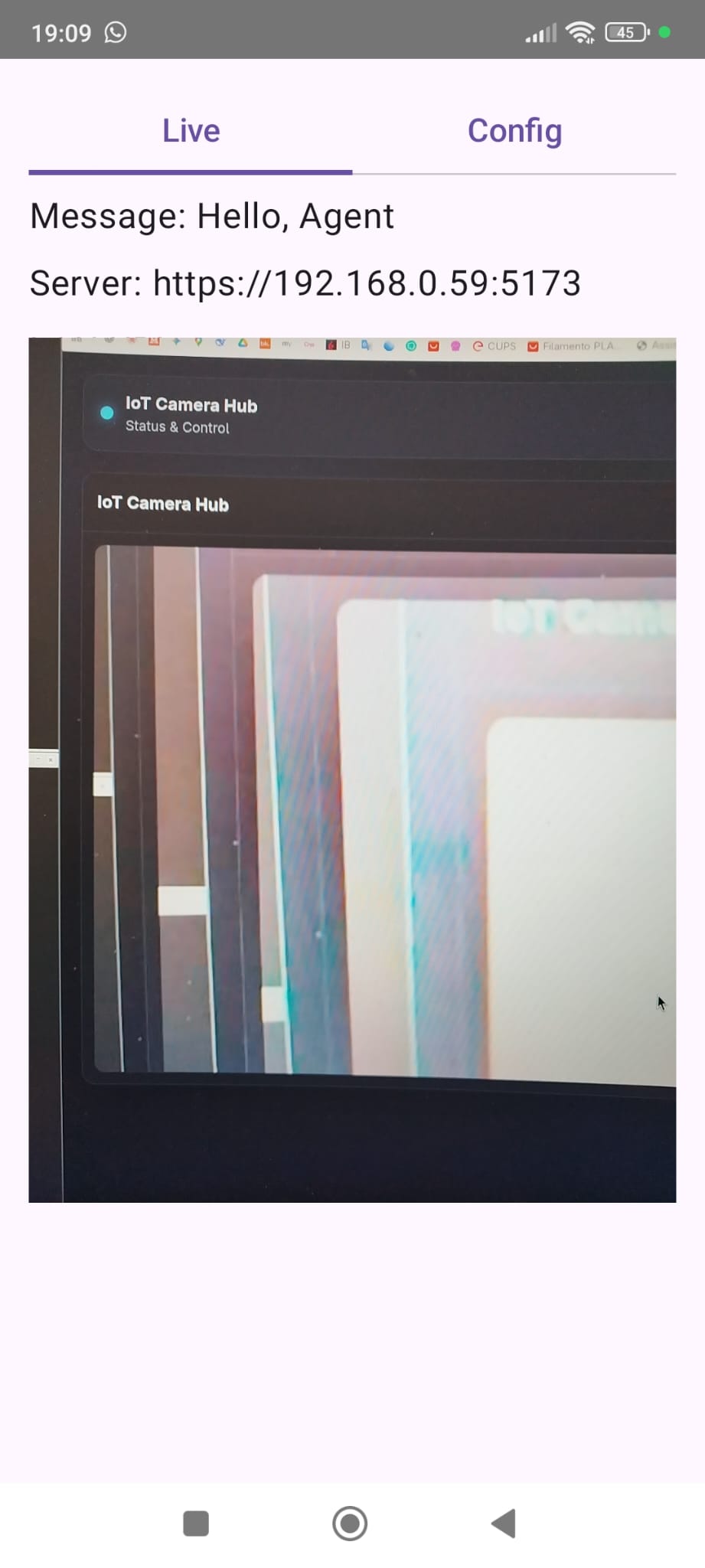
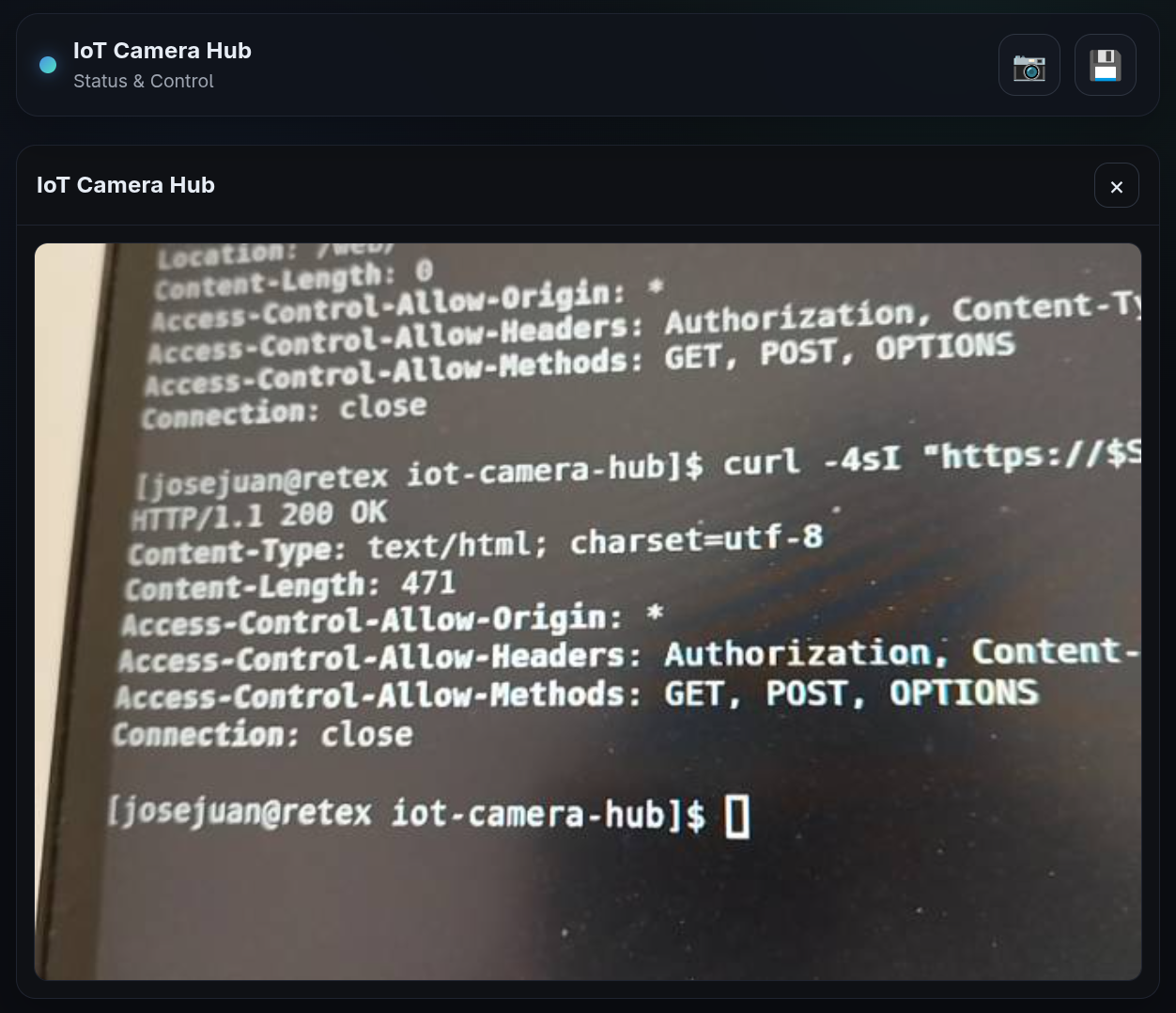
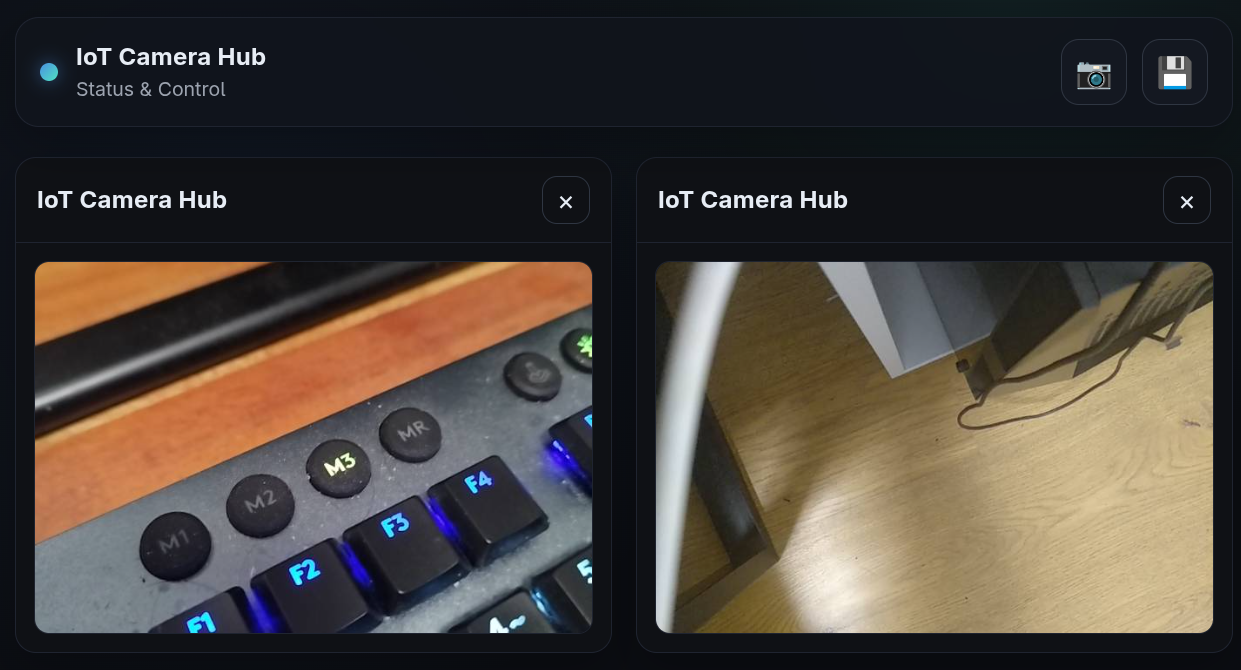
Access via API/curl
Lightweight snapshot
curl -4s -u user:PhotoSh0t "https://$PRINCIPAL_IP:5173/camera/snapshot?width=1024" --output snapshot.jpg
High-quality capture
curl -4s -u user:PhotoSh0t "https://$PRINCIPAL_IP:5173/camera/capture" --output foto.jpg